Understanding the Dashboard
Your DocuNero dashboard gives you a complete overview of your documents, usage, activity, spending insights, and team workflow — all organized in one clean, powerful workspace.
Dashboard Overview
When you sign into DocuNero, you’ll land on your dashboard — the central place where you can track your organization's document processing, review spending summaries, monitor accuracy, access shortcuts, and quickly understand what's happening in your workspace.
The dashboard includes two viewing modes: Organization View for team activity, and My Data for your personal uploads and reports. (Dual view will be only visible to the Pro/Teams - owners/admins)
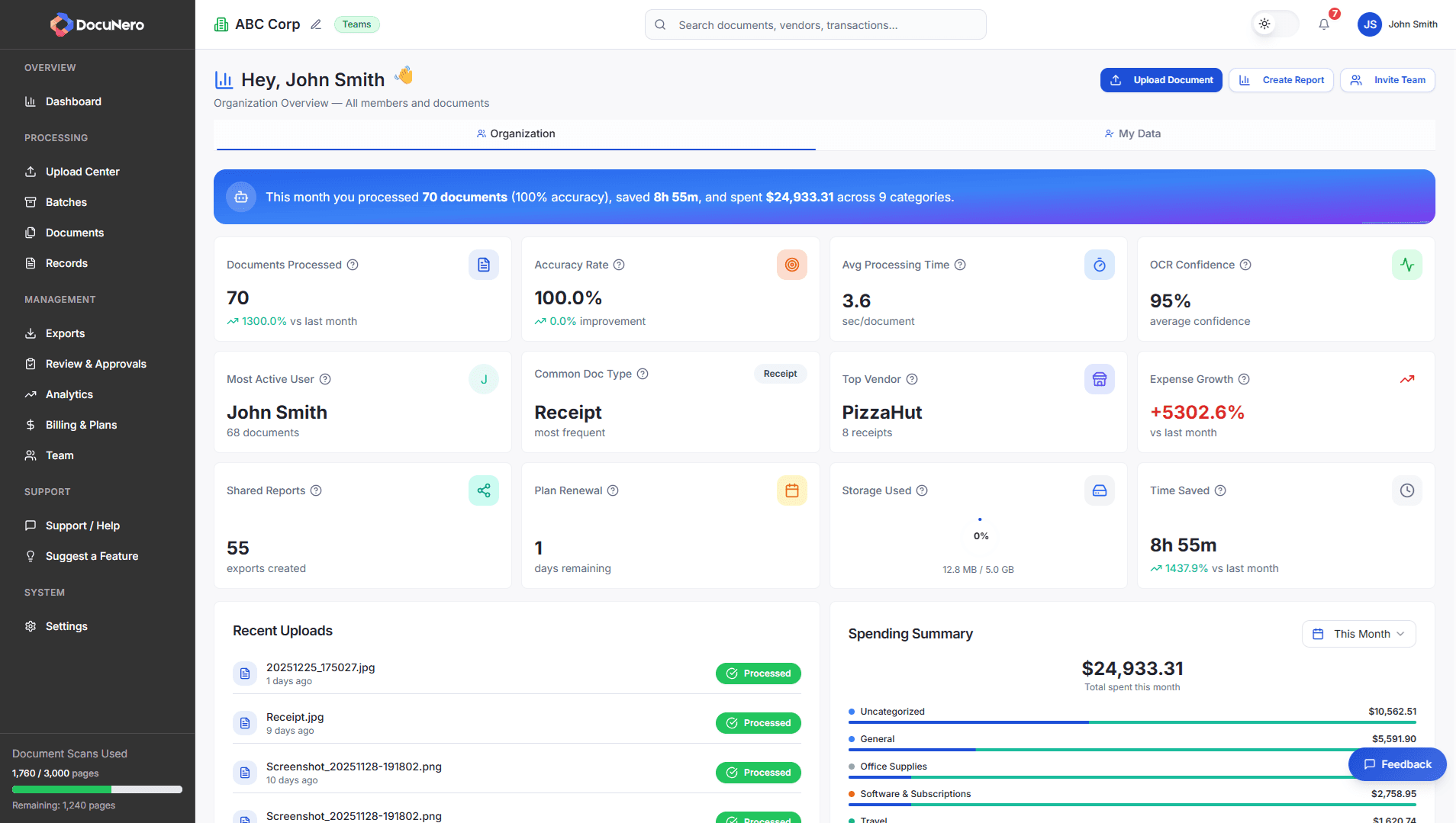
Dashboard at a Glance
View your processed documents, accuracy rate, categories breakdown, vendor insights, recent uploads, time saved, storage usage, and more — all in one place.
Key Dashboard Sections
1. Navigation Header
The top navigation bar includes:
- Global Search — search documents, vendors, transactions, and more
- Upload Document — upload new files instantly
- Create Report — generate summary or export reports
- Invite Team — add users to your workspace
- Profile Menu — switch workspaces, update settings, or log out
2. Summary Cards
Your dashboard includes a set of smart summary cards representing your most important metrics:
3. Recent Uploads
The Recent Uploads list shows your latest documents with timestamps, status indicators (Uploaded, Processing, Completed), and quick actions.
4. Spending Summary
Your dashboard shows a breakdown of your spending across categories such as Travel, Meals & Entertainment, and others — with a total amount spent this month and a clear bar-chart comparison.
5. Vendor & Category Insights
DocuNero automatically identifies vendors and categories based on your receipts and invoices, giving you insights into top vendors and most common document types.
Understanding Document Statuses
Every uploaded document goes through several processing stages:
| Status | Description | What to Do |
|---|---|---|
| Pending | Uploaded and queued for processing | No action required |
| Processing | OCR + AI extraction in progress | Processing usually finishes in under a minute |
| Completed | Extraction finished and ready for review | Open and validate the extracted fields |
| Failed | The system couldn't read the file | Try re-uploading or check file clarity |
Navigation and Organization
Sidebar Navigation
The left sidebar includes:
- Dashboard
- Upload Center
- Batches
- Documents
- Records
- Exports
- Review & Approvals
- Billing
- Team
- Support / Help
- Settings
Search & Filters
You can quickly find documents using:
- Global search bar (top of the page)
- Date filters
- Document type filters
- Status (Pending, Completed, Failed)
- Uploader filters (team-only)
Team Collaboration
On Pro and Teams plans, your dashboard also includes insights from all workspace members:
- Recent uploads by team members
- Most active user
- Shared reports
- Documents awaiting approval
Role-Based Visibility
- Owner/Admin: Full insights + billing + team
- Member: Upload and manage documents
- Uploader: Only upload documents
- Viewer: Read-only access
Customizing Your Dashboard
Certain sections appear dynamically based on your plan and activity. Full widget customization and layout personalization options are coming soon.
Mobile Experience
DocuNero is fully responsive with a collapsible sidebar, mobile navigation, and clean stacked card layout for smaller screens.
Getting Help
If you ever need assistance:
- Click the Help icon (?) in the top navigation
- Browse the Help Center
- Contact our support team for assistance
Next Steps
Now that you understand the dashboard, try uploading your first document to see DocuNero in action.
Frequently Asked Questions
How do I change dashboard settings?
Click your profile avatar in the top-right corner and select Settings to update preferences.
Does the dashboard show team activity?
Yes. On Pro and Teams plans, the Organization view shows member uploads, shared reports, vendor trends, and approval activity.
What does the 'Processing' status mean?
The document is being processed using Google Vision OCR and OpenAI extraction. This usually completes within 10–20 seconds.
How do I find a specific document?
Use the global search bar at the top of your dashboard to search by vendor name, document name, invoice number, or extracted content.
Can I customize the dashboard?
Some sections adapt based on your role and plan. Full widget customization will be available in an upcoming update.