Your First Upload
Upload your first document and see how DocuNero extracts, understands, and organizes financial data — all in seconds.
Before You Begin
For best results, ensure your document is:
- Clear and easy to read (no shadows or blur)
- In PDF, JPG, or PNG format
- Under 10MB in size
- Receipts, invoices, and bills are fully supported
Pro Tip
Avoid angled photos. A straight, sharp capture improves extraction accuracy dramatically.
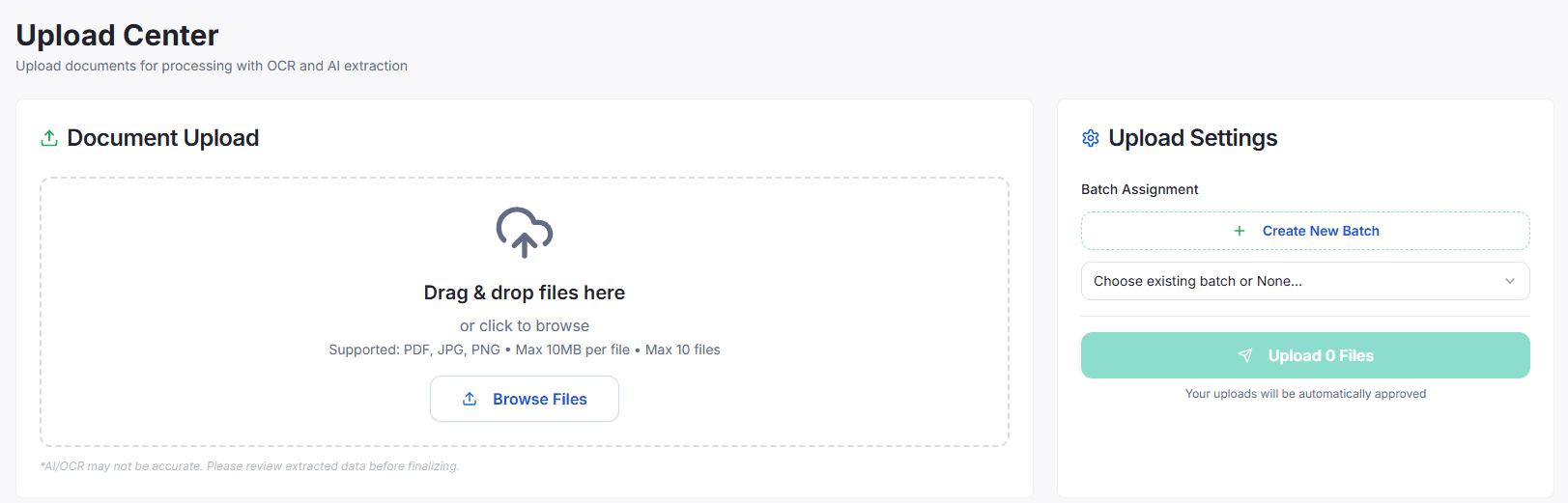
Choose Your Files
Use drag-and-drop or click Browse Files in the Upload Center to begin.
- Drag & drop files or click to browse
- Supported formats: PDF, JPG, PNG
- Max file size: 10MB
- Upload up to 10 files at once
Assign a Batch (Optional)
Group documents into batches for clients, reporting cycles, or project folders.
- Select an existing batch
- Or click 'Create New Batch'
- Batches help keep uploads organized
- Batch assignment is optional
Upload & Process
Click Upload to start AI extraction. DocuNero reads and understands your document automatically.
- Processing takes 20–60 seconds
- OCR extracts readable text
- AI identifies totals, vendors, dates, taxes
- Clear documents = better accuracy
Review & Approve
Verify extracted fields and make corrections before exporting.
- Review key fields
- Edit incorrect values
- Check line items
- Approve when complete
What Happens After Upload?
DocuNero automatically processes your document through several stages:
Processing Stages
OCR Scan
Google Vision extracts all readable text from the document.
AI Extraction
OpenAI identifies vendors, amounts, dates, taxes, and other key fields.
Line Item Parsing
For invoices, each product or service line is extracted and categorized.
Quality Check
Confidence scores help you quickly identify fields worth reviewing.
Reviewing Your Results
After processing, you’ll reach the Review screen where extracted fields are displayed.
- Vendor, date, totals, taxes, and payment details
- Editable fields for correcting inaccuracies
- Line item tables for invoices
- Approve the document for export
Why Review Matters
Even with high confidence scores, a quick review ensures accuracy and trains the AI over time.
Exporting Your Data
Export extracted data for reporting, bookkeeping, or integrations.
- CSV — spreadsheet-ready
- Excel (.xlsx) — formatted output
- PDF — with extracted fields highlighted
- JSON — for developers or APIs
Troubleshooting
Upload Not Working
- Ensure the file is under 10MB
- Supported formats: PDF, JPG, PNG
- Try refreshing or using Chrome
Low Extraction Quality
- Use a clear, flat image
- Avoid shadows or folds
- Upload the original digital file if possible
Frequently Asked Questions
How long does processing take?
20–60 seconds for most documents.
Why low confidence?
Blurry or angled images reduce extraction accuracy.
Can I upload multiple files?
Yes, up to 10 files at once.
What if processing fails?
Retry the upload or contact support.