How to Upload Documents
Uploading documents in DocuNero is fast, simple, and designed to work with a wide range of file types. This guide walks you through the supported formats, upload methods, limits, and best practices to ensure the most accurate extraction possible.
Multiple Upload Options
Upload from the Upload Center, dashboard quick action, or Documents page. All methods support drag-and-drop, file browsing, and mobile photo uploads.
1. Where to Upload Documents
You can upload documents from multiple places inside your workspace:
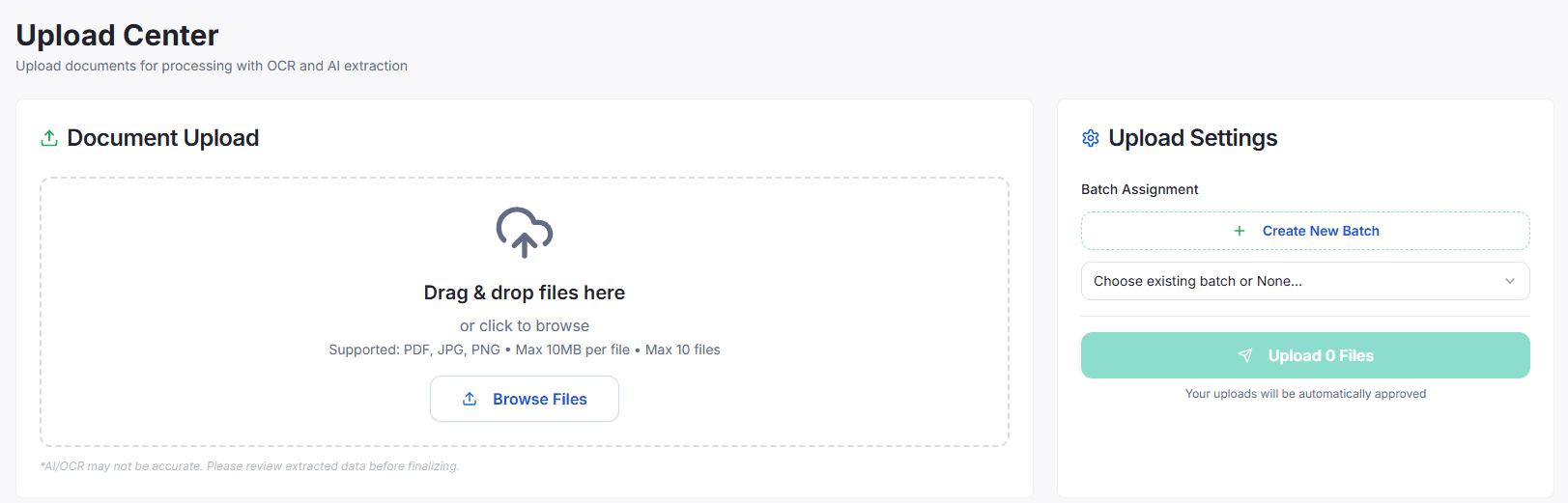
Upload Center
The Upload Center provides drag-and-drop functionality, file previews, and batch assignment options.
Dashboard Quick Action
Click Upload Document (it navigates to Upload center) from the dashboard header for a one-step upload.
Documents Page
Navigate to Documents → Upload Document (it navigates to Upload center) to add files directly to your library.
All three options support single or multi-file uploads.
2. Supported Upload Methods
Drag & Drop
- Drag files from your computer into the upload area
- Ideal for quickly uploading multiple documents
- Shows instant visual feedback as files are added
Browse Files
- Click the Browse Files button to select documents manually
- Supports selection of multiple documents in one action
Mobile Upload
- Take a photo of a receipt or invoice
- Select existing images from your device
- Works with iOS and Android photo libraries
3. Supported File Formats
DocuNero supports the most common document types used for financial records:
| Format | Supported | Notes |
|---|---|---|
| Best for invoices, bills, statements | ||
| JPG / JPEG | Ideal for receipts or mobile captures | |
| PNG | High-quality images recommended | |
| TIFF | Works for most single-page TIFFs | |
| HEIC | Not yet | Coming soon |
| Scanned PDFs | Ensure text is legible for OCR |
Pro Tip
For maximum accuracy, upload PDFs whenever possible. They're processed faster and provide more reliable extraction results.
4. File Size & Upload Limits
To maintain processing speed and accuracy:
- Recommended DPI: 200–300 for scanned images
- Multi-page PDFs: Fully supported
If you need support for larger documents or higher volume importing, contact support about enterprise limits.
5. Assigning a Batch (Optional)
Batches help keep uploads organized by:
- Month (e.g., Jan-2025 Purchases)
- Client (e.g., ABC Catering)
- Project (e.g., Q4 Expense Review)
During upload, you can select an existing batch, create a new batch, or leave batch unassigned (default). Batching does not affect processing — it only helps with organization and exports.
6. What Happens After Upload
Once your file is uploaded:
OCR Analysis
DocuNero uses Google Vision OCR to read all text and structural elements.
AI Extraction
Key fields such as vendor, invoice date, totals, taxes, and line items are extracted.
Confidence Scoring
Each field receives a confidence rating based on clarity and readability.
Review Screen
You can edit, correct, or approve extracted information before exporting.
Processing typically completes in 10–40 seconds.
7. Best Practices for Accurate Uploads
Do:
- ✔ Use high-resolution PDFs whenever possible
- ✔ Keep images flat, well-lit, and free of folds
- ✔ Crop unnecessary borders
- ✔ Make sure text is sharp and readable
Avoid:
- ❌ Dark or low-light photos
- ❌ Blurry images
- ❌ Angled photos (take straight overhead)
- ❌ Handwritten receipts (partial support only)
8. Troubleshooting Upload Issues
Document won't upload
- File is larger than 10MB
- Unsupported file type
- Browser extensions blocking uploads
- Poor internet connection
Processing fails
- Try re-uploading the file
- Ensure the document is not password-protected
- Check if the PDF is corrupted
Poor extraction quality
- Improve lighting
- Retake the photo
- Avoid shadow or glare
- Use original PDF instead of a screenshot
9. Next Steps
Once you understand how uploads work, explore:
- Line Item Extraction
- Exporting CSV, PDF, and JSON
- Batch Processing
- Approval workflows (Pro/Teams plans)
Frequently Asked Questions
What file formats does DocuNero support?
DocuNero supports PDF, JPG/JPEG, PNG, and TIFF files. PDFs provide the best accuracy for invoices and statements.
What's the maximum file size I can upload?
The maximum file size is 10MB per document. For larger files or higher volume needs, contact support about enterprise limits.
Can I upload multiple documents at once?
Yes, you can upload up to 10 documents simultaneously using drag-and-drop or the browse files option.
What should I do if my document fails to process?
Try re-uploading the file, ensure it's not password-protected, and check that the text is legible. For persistent issues, contact support.
How long does document processing take?
Processing typically completes in 10–40 seconds, depending on file size and complexity.